What DeusPen does
Tablet mode: the iPad is a blank drawing surface, like a pen tablet. You look at your Mac screen and draw on the iPad, with pressure, tilt and hover reaching your Mac apps.
Display mode: the iPad shows your Mac screen and you draw right on it, like a pen display. Both modes are included in one purchase.
What you need
- An iPad running iPadOS 18 or later. DeusPen is built and tested with iPad Pro; see Compatibility for what we have tested.
- An Apple Pencil. DeusPen is built and tested with Apple Pencil Pro; squeeze and barrel roll need it.
- A Mac with Apple silicon running macOS 15 or later. Windows and Linux companions are coming soon.
- A USB-C cable that carries data, or both devices on the same Wi-Fi network.
Install both apps
- On your iPad, install DeusPen from the App Store.$14.99, once. One purchase, everything included.
- On your Mac, download the free DeusPen companion and drag it to Applications.It lives in the menu bar. You can also use Send to Mac in the iPad welcome to get the link onto your Mac.
- Open both.The companion shows its status in the menu bar; the iPad starts its welcome.
DeusPen needs both apps. The Mac companion is always free.
The welcome
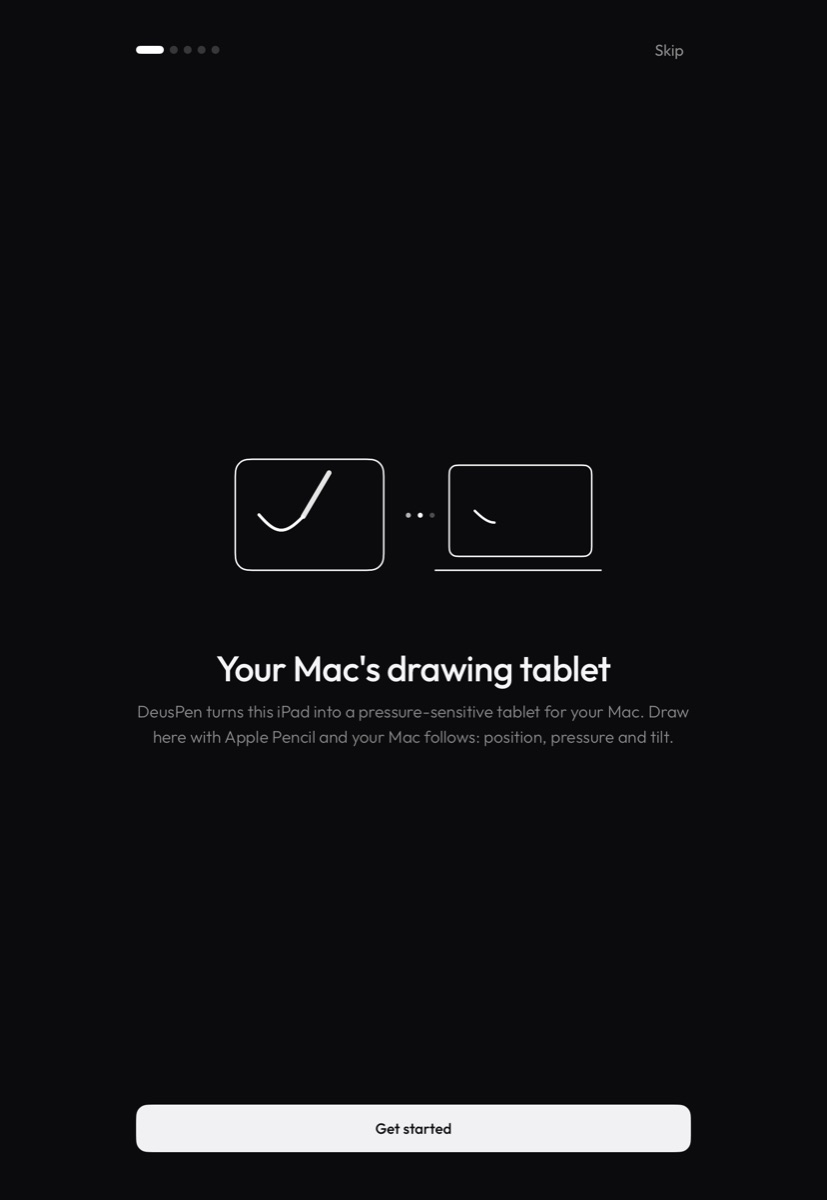
The first time you open DeusPen on the iPad, a short welcome walks you through getting the companion, connecting to your Mac, allowing Accessibility on the Mac, and a "Try your Pencil" pad where you can see pressure before you draw on the Mac. Each step says what it asks for and why.
Connect
Plug in a USB-C cable for the steadiest link and the quickest pairing, or pair once over Wi-Fi. See Connect with USB-C and Connect over Wi-Fi.
Your first stroke in Photoshop
- Open Photoshop and pick a brush that uses pen pressure.Brush Settings › Shape Dynamics › Size Jitter › Control: Pen Pressure.
- Hover the Pencil just above the iPad.The pointer moves on your Mac without painting.
- Press and draw a stroke, light to heavy.If the stroke tapers, pressure is reaching Photoshop.
Related
Still stuck? Email support@deuspen.com with your iPad and computer models, the app you draw in, whether you were on the cable or Wi-Fi, and what you expected. The Diagnostics panel in the companion's Settings shows the connection state in words; tell us what it says.